Provider guides
Gmail SMTP and IMAP Settings for Cold Email (with App Password)
Gmail and Google Workspace SMTP/IMAP settings, how to create an app password, and why IMAP access is what lets replies stop a cold email sequence.
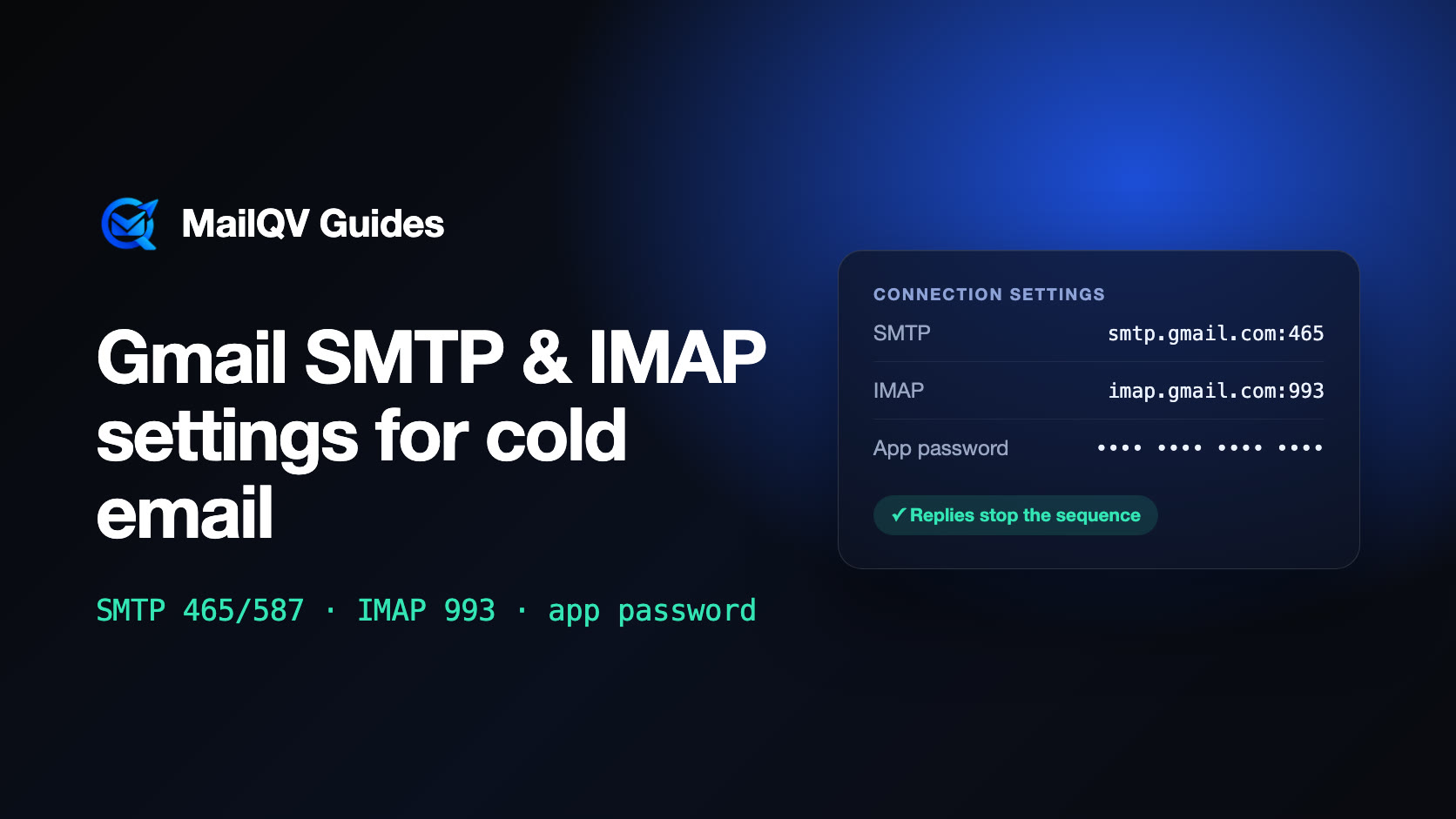
Gmail sends through smtp.gmail.com on port 465 (SSL) or 587 (STARTTLS) and receives through imap.gmail.com on port 993 (SSL). Use your full Gmail or Google Workspace address as the username and a 16-character app password as the password; app passwords require 2-Step Verification and can be restricted by a Workspace admin. Connecting over IMAP—not only sending—is what lets a cold email tool see replies and bounces and stop follow-ups automatically.
Server settings
These are Google’s published values for third-party mail apps. They are the same for free Gmail and Google Workspace accounts.
- SMTP (outgoing): smtp.gmail.com, port 465 with SSL or port 587 with STARTTLS
- IMAP (incoming): imap.gmail.com, port 993 with SSL
- Username: your full email address, for example you@yourcompany.com
- Password: an app password, not your normal Google password
Create an app password
Google does not accept a normal account password from third-party apps. An app password is a separate 16-character password that lets one app sign in over SMTP and IMAP. You can revoke it at any time without changing your main password.
- Turn on 2-Step Verification for the Google account.
- Open your Google Account, search for “App passwords” and create one with a recognizable name such as “MailQV”.
- Copy the 16-character password into the SMTP and IMAP password fields.
- If the App passwords page is missing, a Workspace admin may have restricted it, or the account uses security keys only or Advanced Protection.
Google Workspace accounts
Google has retired password-only (“less secure app”) sign-in for Workspace, so a normal password is refused. App passwords still work for Workspace users who have 2-Step Verification, unless an admin has turned them off. Admins can also disable IMAP access for users; if a connection fails with the right password, ask your admin to allow app passwords and IMAP for the mailboxes you send from.
Why IMAP matters for cold email
Sending only needs SMTP. Knowing what happened after you sent needs inbox access. With IMAP, a cold email tool can notice that a prospect replied, or that a message bounced, and stop the remaining follow-ups for that person.
Without it, the sequence keeps going and a prospect who already answered receives the next step. That is the fastest way to turn a warm reply into an annoyed one.
Sending limits still apply
Connecting over SMTP does not raise Gmail’s limits. Google’s published sending limits and its sender guidelines still apply, and a cold campaign should run well below them, spread across the working day.
Connecting Gmail to MailQV
MailQV offers two ways to connect a Gmail address. Signing in with Google is the quickest and supports sending, open tracking and click tracking, but it does not read your inbox, so replies and bounces are not detected for that mailbox.
Connecting the same address through SMTP/IMAP with an app password adds reply and bounce detection: MailQV checks the inbox for replies to campaign emails, stops the remaining steps for that contact and stops sending to addresses that bounce.
Official sources
Provider limits and policies can change. These official pages were reviewed on 2026-10-24.
Frequently asked questions
Should I use port 465 or 587 for Gmail SMTP?
Both work. Port 465 uses SSL from the start; port 587 starts unencrypted and upgrades with STARTTLS. Use whichever your tool supports and keep IMAP on 993.
Why does Gmail reject my normal password?
Google blocks password-only sign-in from third-party apps. Turn on 2-Step Verification, create an app password and use that instead.
Can replies be detected if I connect Gmail with Google sign-in?
Only if the tool asks for permission to read your mailbox. MailQV’s Google sign-in is send-only by design; connect over IMAP with an app password if you want replies to stop sequences.
Put it into practice
Run measured outreach with mailbox-level control.
MailQV connects sender rotation, sequences, contacts and campaign signals without claiming guaranteed inbox placement.